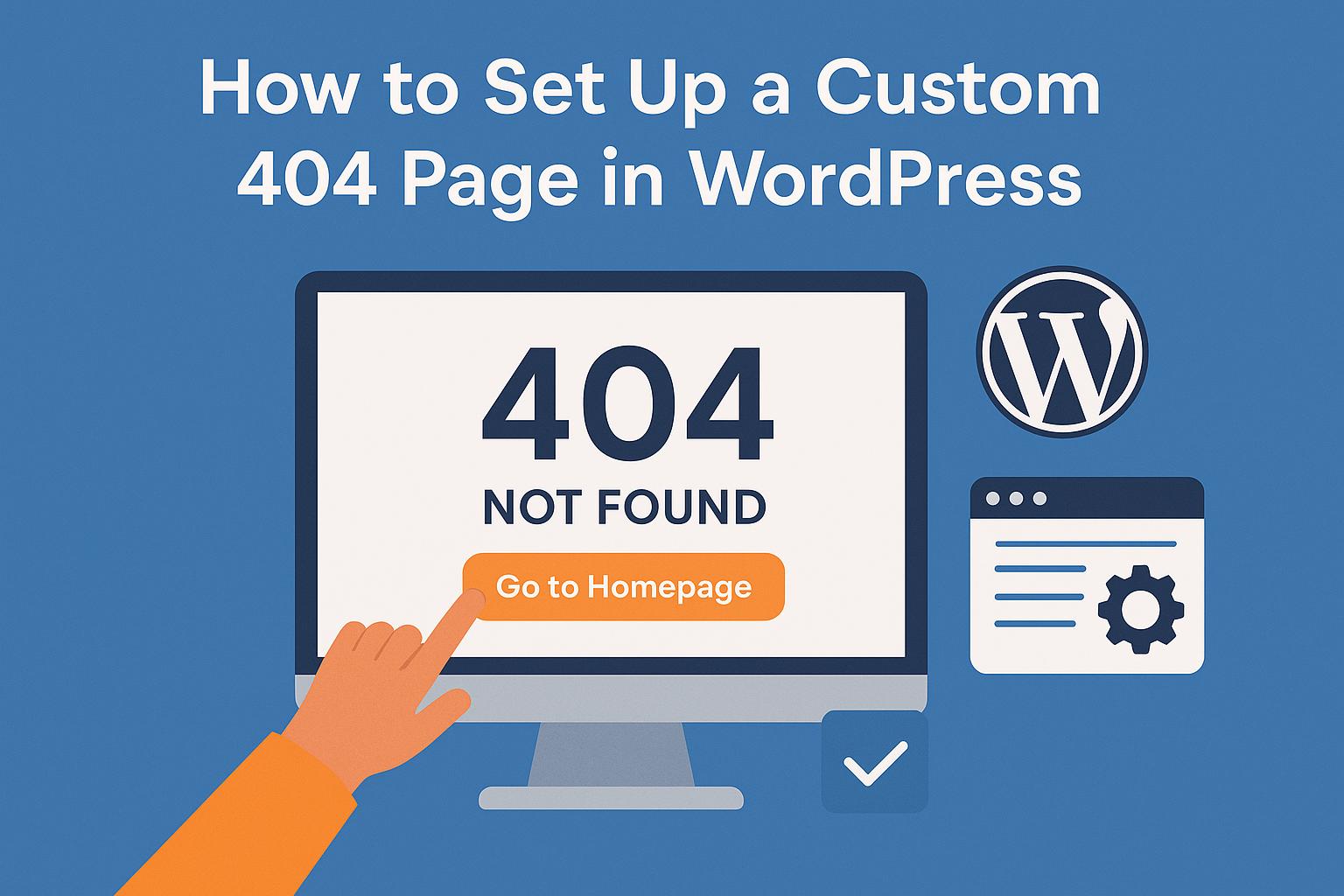
Setting Up a Custom 404 Page in WordPress
Creating a custom 404 page in WordPress is a beneficial strategy for improving user experience and retaining visitors when they encounter broken or non-existent links on your website. A well-crafted 404 error page does more than just inform users that the page they’re seeking is unavailable; it can serve as a tool to guide them back to valuable content on your site, thereby minimizing disruption and potential loss of interest. Here’s a detailed guide on how to set up a custom 404 page effectively.
Understanding the 404 Error
Before diving into the creation of a custom 404 page, it’s important to first understand what a 404 error is. The 404 error page is a standard HTTP error message that indicates that the server was unable to find the requested page or resource. This typically occurs when a user attempts to navigate to a URL that does not exist, due to either an incorrect link or a deleted page.
A typical default 404 page is plain and often includes technical jargon that can leave users confused or frustrated. However, by customizing this page, you can offer intuitive navigation options or a friendly message, which can direct users towards other parts of your website, maintaining engagement and decreasing the likelihood of a swift exit.
Accessing Your Theme Files
To create a custom 404 page, you’ll need to gain access to your theme files. This can be done in two main ways: via the WordPress Dashboard or by using an FTP client. Here’s how each method works:
Via WordPress Dashboard:
- Log into your WordPress Dashboard and navigate to the Appearance section.
- Select Theme Editor. Be careful while editing theme files directly through the dashboard, as changes can affect your entire site.
- Locate the 404 Template, which should be listed on the right-hand sidebar under the theme files section.
Via FTP Client:
- Use an FTP client to connect to your website’s server. You will need FTP credentials for this.
- Navigate to the wp-content/themes/your-theme directory.
- Look for the file named 404.php and download it to your local machine for editing.
Using either of these methods will allow you to access and edit the 404.php file to implement your customizations.
Editing the 404.php File
Once you have located the 404.php file, you’re ready to start customizing your 404 page. Below is an example code snippet that serves as a basic template for a custom 404 page:
“`php